

Why Is My Hearing Amplifier Whistling? Causes and Fixes
Learn why a hearing amplifier whistles, how to reduce feedback safely, and which microphone, headphone and volume checks to try with iRoger models.
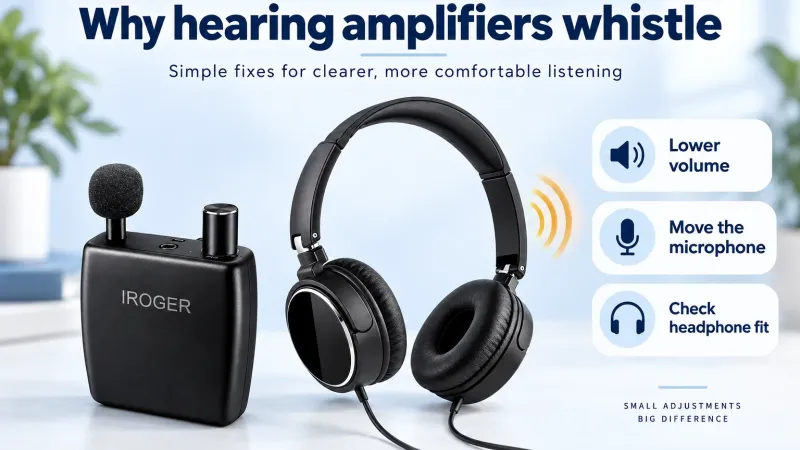
A sudden whistle from a hearing amplifier can be startling. Turn the listening volume down immediately, or switch the device off. Do not keep listening to a squeal while trying different settings. The next step is to check the microphone, headphones and listening setup—not to turn the volume higher.
This guide explains acoustic feedback and practical fixes for iRoger users. Start with two common checks: did you switch on before wearing the headphones, and are the headphones fitted properly?
Why does a hearing amplifier whistle?
Acoustic feedback happens when amplified sound returns to the microphone and is amplified repeatedly. With a personal amplifier, sound escaping from headphones or earphones can become part of that loop. Once the loop becomes strong enough, a sustained whistle, ringing tone or howl may appear.
Common causes
- Switching on before putting on the headphones. Unworn earpieces on a table or in your hand can send amplified sound back into the microphone, especially at higher volume or close range.
- The microphone is too close to the listening earpieces. An earpiece left beside the microphone gives amplified sound an easy route back into it.
- The listening volume is higher than the setup can support. A distant talker may tempt you to add volume instead of improving microphone placement.
- The headphones are not fitted properly. A loose or lifted headphone cup, gaps around the ear pads, or a poorly seated earphone can let amplified sound leak toward the microphone and trigger feedback. Wearing only one earpiece leaves the other exposed.
- Sound reflects around the equipment. A nearby hard surface can change the acoustic path, so a setup that worked in one position may whistle in another.
How to stop the whistle safely
- Reduce volume and pause. If the whistle does not stop immediately, switch off. Never deliberately provoke feedback near your ears to find the maximum setting.
- Reconnect only with the amplifier off. Check the microphone and headphone plugs against the labels and instructions. Seat them fully without forcing them; do not confuse the microphone input with the headphone output.
- Put the headphones on before switching on. With the amplifier off, fit both headphone cups snugly and comfortably over your ears. If using compatible in-ear earphones, fit the tips as instructed; do not force them deeper.
- Keep the microphone separate from the headphones. Aim the directional microphone toward the person or television you want to hear, rather than toward the listener's earpieces.
- Restart at the lowest volume. Ask someone to speak normally. Raise the level gradually only as needed. If whistling returns, lower it again and reassess the arrangement.
- Before removing or adjusting the headphones, lower the volume or switch off. Do not place powered earpieces beside the microphone.
If whistling starts before you put the headphones on, switch off first—do not put squealing headphones onto your ears. Refit them with the device off, then restart at low volume.
iRoger-specific feedback troubleshooting
IR8: use the separate microphone to your advantage
The iRoger IR8 personal sound amplifier has one-knob power and volume control, a separate directional microphone and included headband headphones. Its package also includes a 3 m microphone extension cable.
For a conversation across a table, place the microphone nearer the other person and away from your listening earpieces. With IR8 switched off, arrange the extension cable so the microphone can face the speaker. Keep the cable out of walkways and away from places where someone could pull it accidentally.
For television listening, the extension cable lets you place the microphone nearer the TV while the amplifier stays with you. Choose a stable location that does not block ventilation or touch a vibrating speaker cabinet. Then connect everything, put on the headphones and restart with the knob at its lowest listening level.
I8-Pro: check the listening accessory you are actually using
I8-Pro includes headband headphones and in-ear earphones. If the whistle started after changing between them, reset the volume to its lowest setting before testing the new accessory. The knob position that felt comfortable with one option is not automatically right for another.
Check fit while the device is off. Do not force an earphone deeper or insert objects into your ear to address a whistle. Follow the accessory's cleaning instructions, and replace visibly damaged parts rather than covering microphone openings or modifying connectors.
MAX and optional TX: identify the active audio source
When using IROGER MAX, note whether the sound is coming from its microphone, Bluetooth audio or an optional IROGER TX transmitter. If a microphone is active, keep that microphone away from the wired headphones connected to MAX. With TX, listening volume is controlled on MAX—not by TX's power knob. TX is a MAX accessory, not an add-on for IR8 or I8-Pro.
Why AGC or noise reduction may not solve it
IR8 and I8-Pro have automatic gain control. AGC manages amplification levels; it is not a promise of acoustic-feedback cancellation. Likewise, a noise-reduction feature should not be treated as a substitute for a suitable microphone-and-headphone arrangement.
EQ changes the balance of frequencies, but it cannot make every physical setup work. Avoid repeatedly boosting tone settings to chase clarity. Return to a comfortable, moderate setting and check the equipment arrangement first.
What if it is not feedback?
Hissing: background sound or electronic noise
A hiss is a steady, broadband “shhh” sound rather than the distinct whistle of acoustic feedback. Possible sources include faint room sounds picked up by the microphone, the microphone's own electrical noise, and noise from the amplifier or connected audio source. These low-level sounds form a noise floor. Turning up amplification can make them more noticeable, especially in a quiet room or during pauses in speech. Hiss alone does not identify which component is responsible.
Start at low volume in a quieter room. Move the microphone closer to the person speaking, while keeping it away from your headphones, so you can hear speech without as much amplification. If the hiss changes with the room or microphone position, background sound may be contributing. If it becomes louder as you raise the listening level, that shows the noise is being amplified; it does not by itself prove a fault. When MAX is used with TX, effective noise reduction keeps audible hiss out of the listening experience. If you hear hiss with another input, compare it with the MAX-and-TX setup at a comfortable listening level to help identify the source.
Hum, crackling and handling noise
A low hum or buzz can come from electrical interference or a connected source. Crackling that follows cable movement may indicate a loose plug or damaged cable; a brief rustle when touching the microphone may be handling noise. Switch off before reseating connections or changing compatible accessories. These sounds need different checks from an acoustic-feedback whistle.
If hiss is intrusive at a comfortable low setting, starts suddenly, or persists after these checks, stop using the troublesome setup and contact support. Do not assume all hiss is normal or try to overcome it by increasing volume. Persistent ringing you still hear after the equipment is switched off should not be diagnosed as amplifier feedback; seek qualified hearing advice if it continues.
If the problem remains, stop using the troublesome setup and consult the iRoger product manual. Record the model, connected accessories, active input and circumstances for support. To compare connection options before changing equipment, see the iRoger hearing amplifier comparison.