

TV Too Loud for Everyone Else? Personal Listening Options to Compare
A personal listening setup can help make TV dialogue easier to follow at your preferred volume, while the rest of the room stays comfortable.
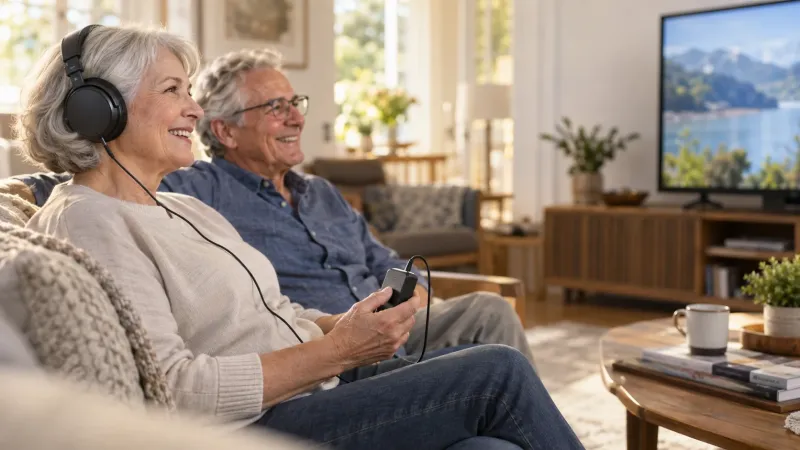
A personal listening setup can help make TV dialogue easier to follow at your preferred volume, while the rest of the room stays comfortable.
Hear the dialogue at your own level
Hearing amplifiers for TV can make TV dialogue easier to hear and follow while the room speakers stay at a level everyone else prefers. Headphones give the listener an independent volume control. A microphone positioned near the television speaker, or a supported direct audio connection, can give the program a more useful path to the listener than relying on sound traveling across the room.
Begin with a familiar newsreader or conversation scene and a comfortable level. Think about where you sit, where the television's speakers are, and whether you want a microphone arrangement or direct connection. Keep the program and chair unchanged while comparing them. Dialogue, comfort, and easy control are the results to check. This helps you choose a useful setup for your evening routine, then identify the cable or transmitter needed to make it work.
Microphone pickup: simple, but placement matters
A microphone-based personal amplifier listens to the room sound coming from the television. It may be a straightforward arrangement when you want to avoid changing TV menus or connecting an audio output. However, it also picks up other sound near the microphone. A fan beside it or a conversation between it and the TV can change the result.
With the IROGER IR8 hearing amplifier, put its separate microphone near the television's actual speaker, keeping vents clear and following the device instructions. Start with a reasonable TV volume, then adjust the personal listening level. Move the microphone a little at a time. If an extension cable is used, route it where it will not be pulled by a chair or become a walking hazard. Confirm cable compatibility rather than assuming every audio cable fits the system.
Direct TV audio: check both ends of the connection
The IROGER TX wireless audio transmitter can take a supported TV audio output and send it to the IROGER MAX hearing amplifier instead of using a room microphone to collect the program. Before buying, photograph or note the labels beside the TV ports. Then compare those labels with the transmitter's input requirements. A connector that physically fits does not establish that the devices support the same signal.
Read whether the TV needs an output setting changed. Some setups also depend on an audio format setting. Follow the exact TV and transmitter instructions; do not guess from an unrelated tutorial. Check the result you care about most: can the listener adjust their own level while the rest of the family still hears the room speakers? Confirm that behavior for the actual TV, because it can differ by output and menu setting.
Already wearing hearing aids? Check the accessory route
Use the hearing-aid maker's compatibility information for the exact model. A TV accessory may send audio directly to supported hearing aids, but the accessory must match the system. Ask whether it needs pairing, whether both ears receive audio, and how volume is adjusted. Do not rely only on “Bluetooth TV” written on the television box.
Keep everyday use in view. Who will select the correct TV input? What happens when the television is turned off and on? Can the wearer return easily to room conversation? A setup that works during a demonstration but needs repeated help at home may be inconvenient. Ask for a short written sequence using the names of the controls on your devices.
Avoid two versions of the same dialogue
Sometimes the television speakers and a personal listening system are both audible to the listener. If they arrive at noticeably different times, dialogue may seem doubled or echoing. Describe when it occurs: only while the room speakers are on, only with one TV app, or with every source. That information helps identify which part of the setup to check.
Follow the TV and accessory instructions for audio delay or output settings, and note the starting values before changing them. Do not try to cover an echo by raising the personal volume. If other people need the room speakers, make that requirement clear when asking support for a compatible connection. If the speakers are not needed for a particular test, compare with them off to see whether the doubled sound changes. Restore the household's normal setup afterward.
Troubleshooting without turning everything up
If there is no sound, work along the connection in order: television output, transmitter or amplifier power, selected input, pairing if required, and the listening output. Confirm each step against the manuals. If sound works but dialogue is uncomfortable, lower the level and check whether a TV sound preset is emphasizing music or effects.
If speech and picture seem out of step, look for relevant audio-delay settings in the TV or connected equipment. Do not assume a different headphone will fix it. If room noise is prominent in microphone pickup, change microphone placement or consider a supported direct connection. Keep a note of which setting you changed so you can return to the previous configuration if it does not help.
A short evening evaluation
Once sound is working, watch a familiar segment at a comfortable level. Check whether you catch more of the dialogue, whether the headphones remain comfortable, and whether other people can keep the room volume where they prefer it. Then pause the program for an ordinary conversation. Practice lowering or pausing the personal device so you can switch easily between television and the person beside you.
If you are using microphone pickup, compare a position nearer the TV speaker with the original placement. If you use a direct connection, check everyday operation when the TV restarts or changes source. Captions can provide a useful extra reference while you compare. For iRoger, choose the supported configuration that suits those tasks and confirm its included accessories. Keep a short note of the connection and volume setting that worked well, so the next evening begins with a familiar setup.
Sources and further reading
- NIDCD: Assistive listening devices and microphone systems
- NIDCD: Hearing aid styles, fitting, and care
For a specific device, use its current instructions and compatibility information.